Some organizations require a one-time admin approval before users can access Azure DevOps data through AgileViz.
For Users — request approval, contact your admin, email templates
For Admins — permissions & justification, grant consent, admin notes
For Users
If you’ve been redirected to this page, your organization’s security policies require an administrator to approve access before you can use AgileViz. This is a one-time process.
Your free trial has not started yet. The trial clock only begins when you successfully generate your first visual, so you won’t lose any trial days during the admin approval process.
There are two scenarios — your organization’s security configuration determines which applies. Most security-focused organizations are configured for Scenario 1.
You might see slightly different messages depending on your organization’s security posture. The timing of these messages varies too — at sign-in or when accessing Azure DevOps data. These are all normal cases and require the same resolution.
Scenario 1: Entra ID Admin Consent Workflow is Enabled
If your organization has enabled the admin consent requests workflow in Entra ID as recommended by Microsoft, you can request approval directly.
- Attempt Sign-In: When you try to use AgileViz, you’ll see a Microsoft-hosted “Approval required” page with a Request approval button and a field for your justification. Depending on your organization’s configuration, you may see one of these dialogs:
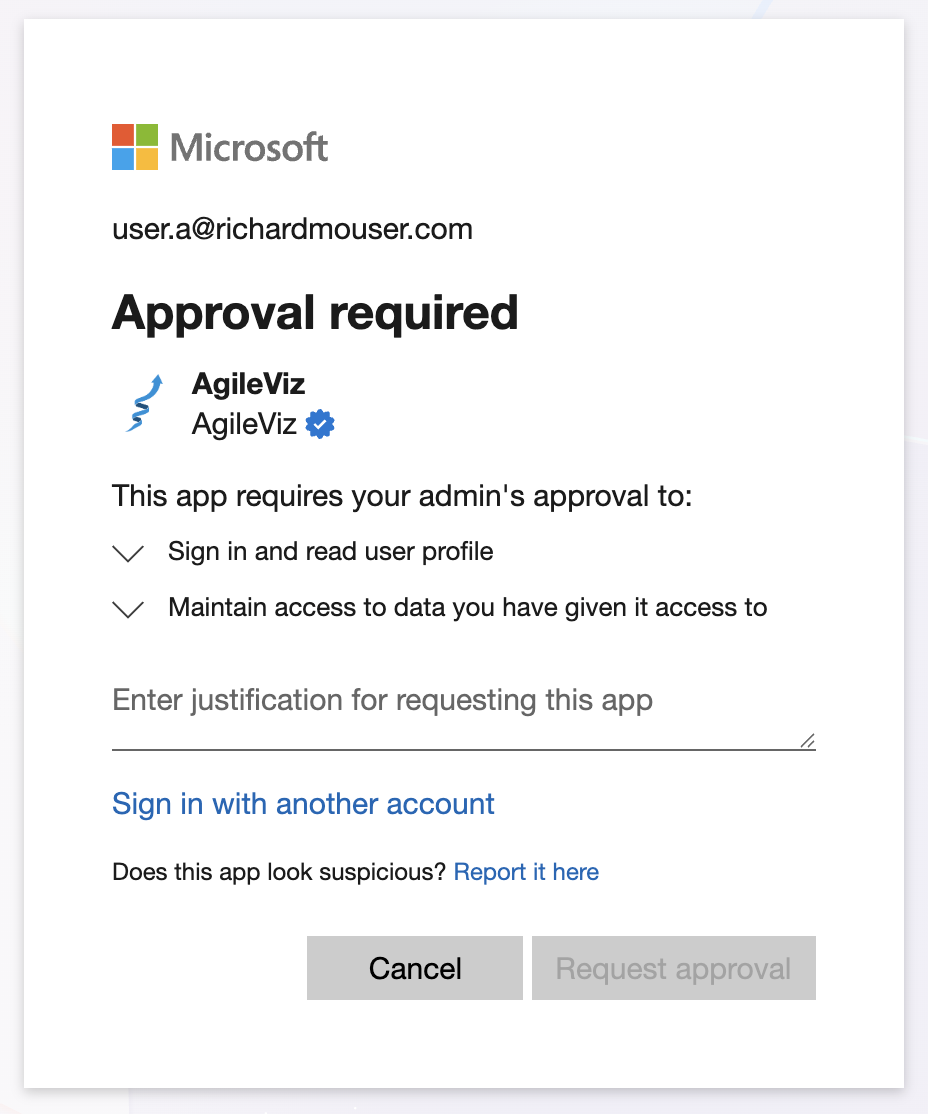
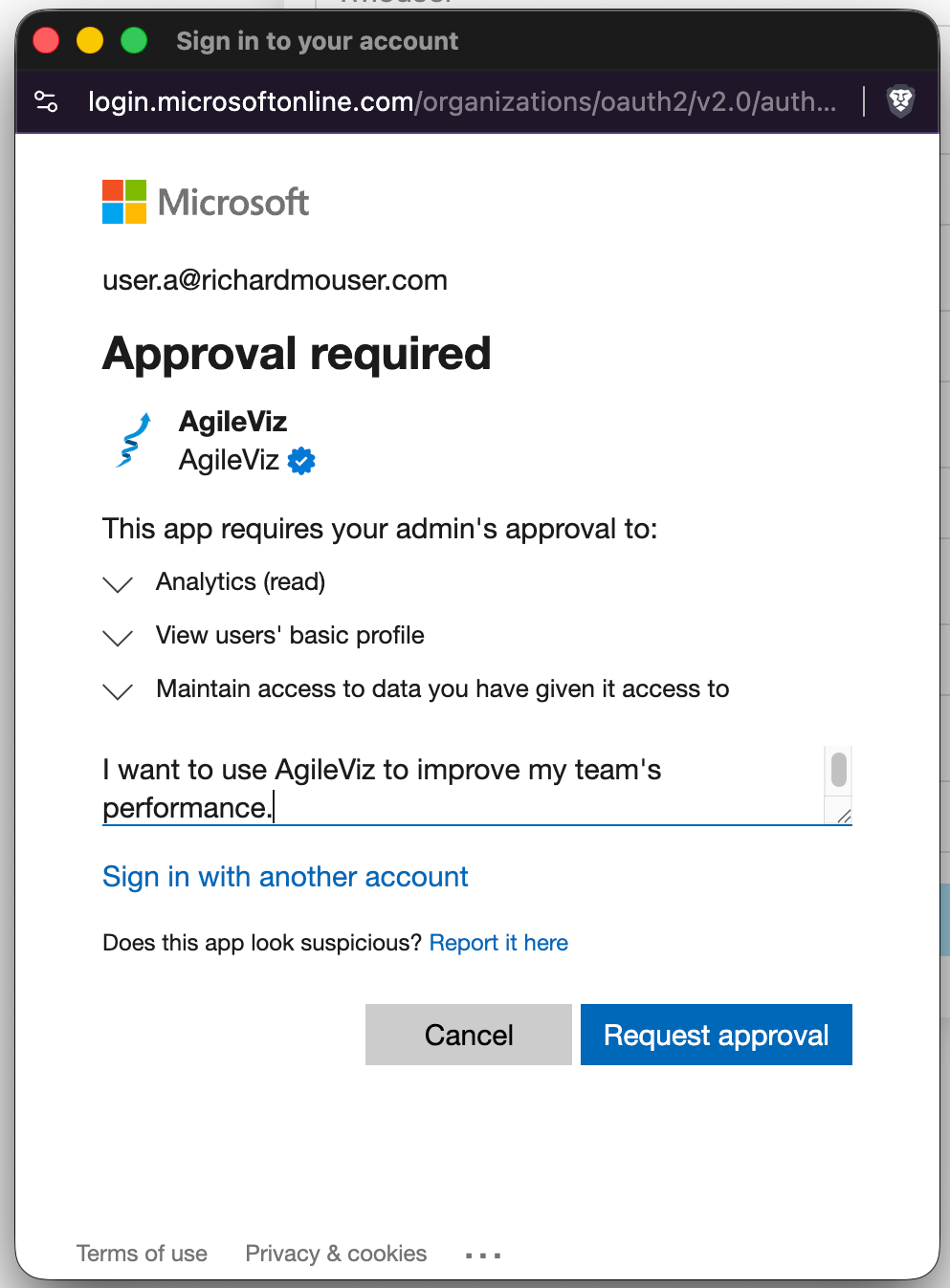
At data access (Analytics read)
Submit Request: Provide a brief justification, for example: “I need access to Azure DevOps analytics through AgileViz to get visibility into my team’s workflow performance.” Then click Request approval.
Request Sent: Microsoft confirms your request has been submitted.
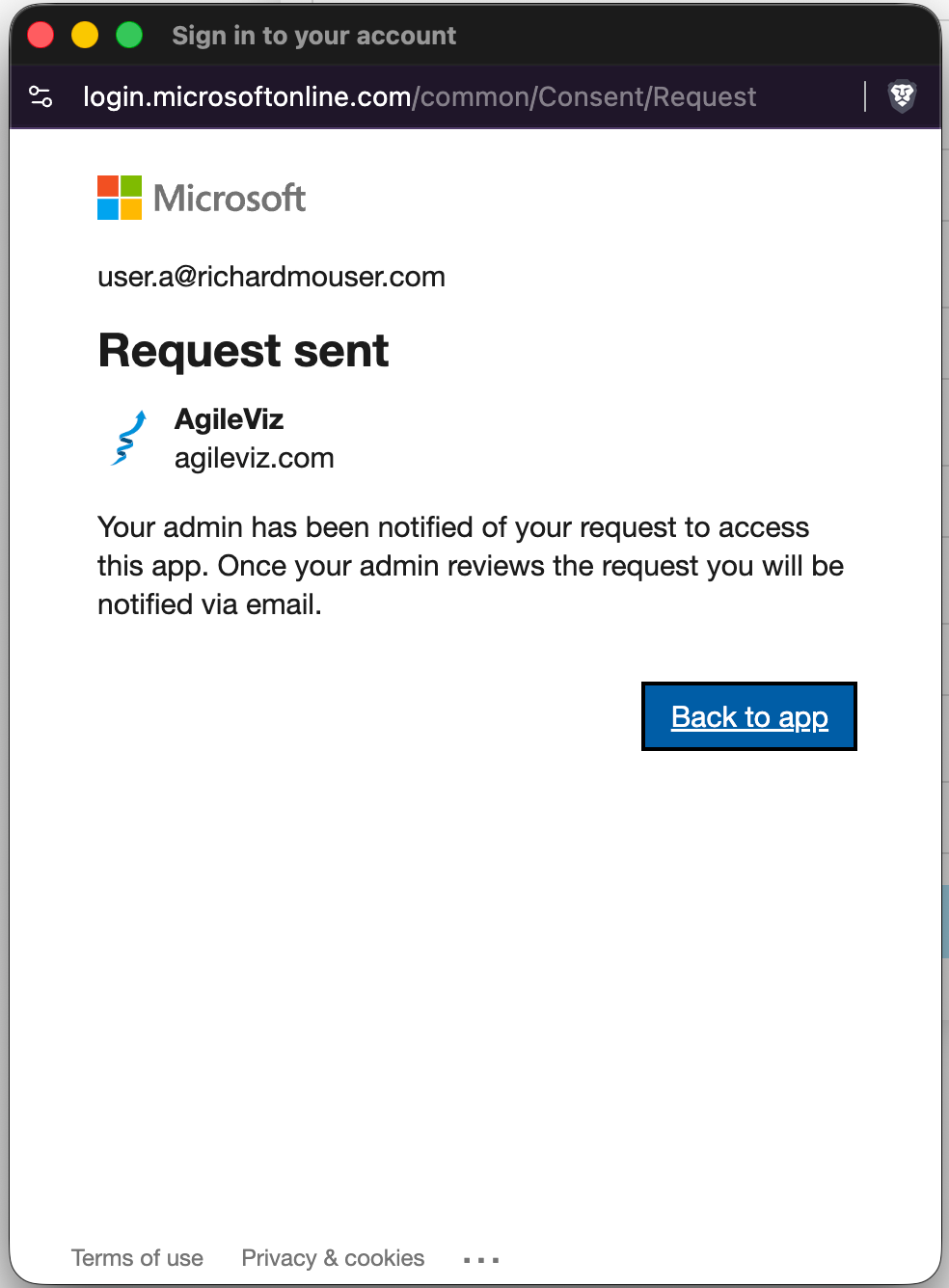
Follow Up: Don’t count on Microsoft’s notification to reach your admin. Send your admin the email template below so they see your request.
Approval: Once approved, you can sign in immediately.
Email template — click Copy and paste into a new email to your IT administrator or help desk.
Subject: AgileViz — I've Submitted an Admin Consent RequestHi,
I submitted a request through Microsoft Entra ID to use AgileViz (agileviz.com), a read-only cycle time visualization tool for Azure DevOps. The request should be in your Entra ID admin consent queue.
AgileViz requests two delegated permissions — user profile (User.Read) and Azure DevOps Analytics read access (vso.analytics). It cannot modify ADO data and does not store ADO data.
You can approve the pending request in Entra ID (search for “Admin consent requests”), or grant consent directly: https://login.microsoftonline.com/organizations/adminconsent?client_id=b6c1193a-254d-49f4-b976-67c55cc058a7&redirect_uri=https://agileviz.com/admin-approval/
More details:
- Admin approval guide: https://agileviz.com/admin-approval/
- Security: https://agileviz.com/security/
- Privacy policy: https://agileviz.com/privacy/
Once approved, all users with Azure DevOps access can sign in — no individual approvals or user administration needed. AgileViz licensing requires no administration on your part (https://agileviz.com/pricing/#how-licensing-works).
Thank you!
Scenario 2: Entra ID Admin Consent Workflow is not Enabled
In this case, you’ll see a “Need admin approval” page with no way to request access directly.
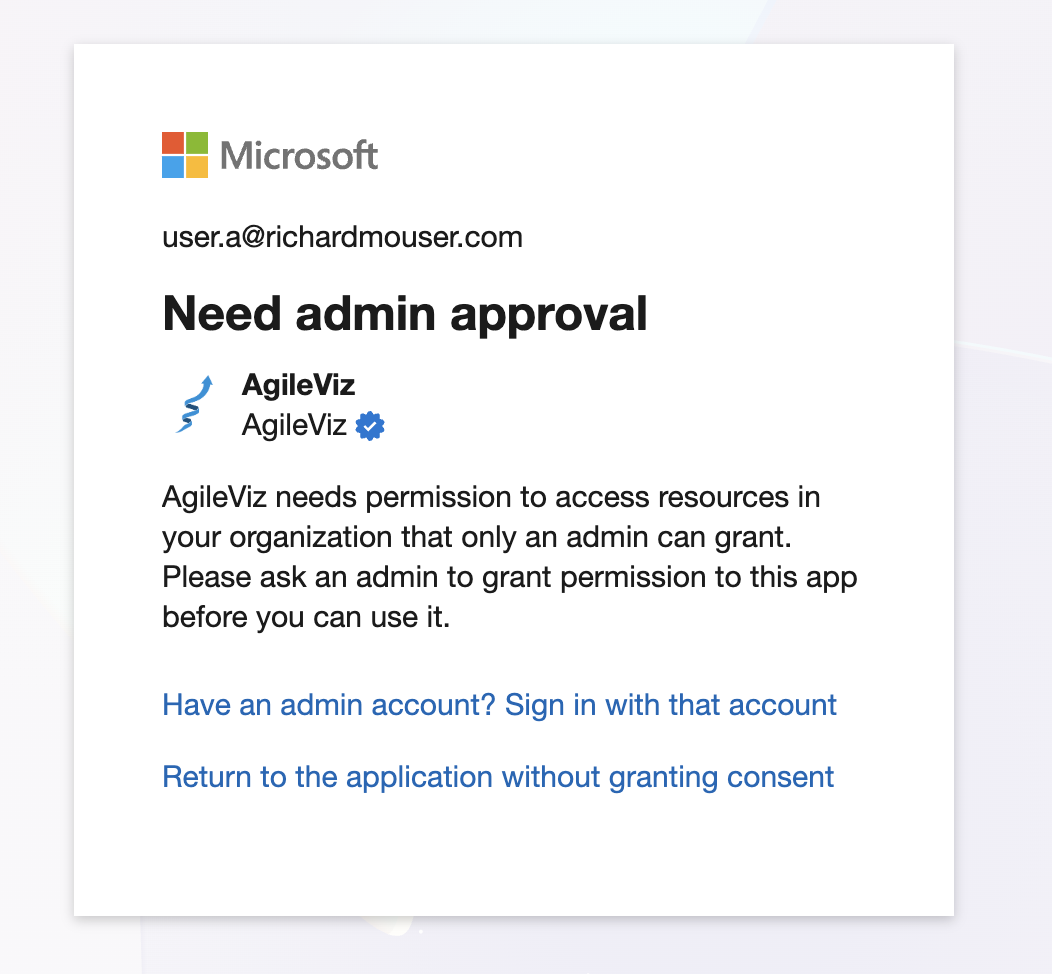
You’ll need to work with your admin or help desk. The email template below includes everything they need, including a one-click consent link.
Email template — click Copy and paste into a new email to your IT administrator or help desk.
Subject: Request for AgileViz Access — Admin Consent NeededHi,
I’d like to use AgileViz (agileviz.com) to visualize our Azure DevOps workflow data. Our tenant requires admin consent before I can sign in.
AgileViz requests two delegated permissions — user profile (User.Read) and Azure DevOps Analytics read access (vso.analytics). It cannot modify ADO data and does not store ADO data.
Grant consent by clicking this link (sign in as an admin, review permissions, click Accept): https://login.microsoftonline.com/organizations/adminconsent?client_id=b6c1193a-254d-49f4-b976-67c55cc058a7&redirect_uri=https://agileviz.com/admin-approval/
For more details:
- Admin approval guide: https://agileviz.com/admin-approval/
- Security: https://agileviz.com/security/
- Privacy policy: https://agileviz.com/privacy/
Once approved, all users with Azure DevOps access can sign in — no individual approvals or user administration needed. AgileViz licensing requires zero administration on your part (https://agileviz.com/pricing/#how-licensing-works).
Thank you!
For Admins
A user in your organization has requested access to AgileViz, a cycle time visualization tool for Azure DevOps. Granting consent allows all users in your tenant with Azure DevOps access to sign in — no individual approvals or user administration is needed after this.
Permissions & Business Justification
AgileViz requests only two permissions, both delegated (acting as the signed-in user, not independently):
| Permission | Scope | Why it’s needed |
|---|---|---|
| Sign in and read profile | User.Read | Identify the user for account and trial management. AgileViz stores only a one-way hash of the email address to track licensing. |
| Analytics (read) | vso.analytics | Read-only access to the Azure DevOps Analytics OData API. This is how AgileViz queries cycle time, throughput, and WIP data. No data is stored — it is processed in the user’s browser and never leaves their session. |
AgileViz does not request app-only permissions, cannot act without a signed-in user, and cannot modify any Azure DevOps data. See the Security page for full details.
To Grant Consent
One-click option — sign in, review permissions, click Accept:
Or copy the direct consent link:
https://login.microsoftonline.com/organizations/adminconsent?client_id=b6c1193a-254d-49f4-b976-67c55cc058a7&redirect_uri=https://agileviz.com/admin-approval/
Azure Portal alternative:
If admin consent workflow is enabled for your tenant:
- Sign in to portal.azure.com
- Go to Microsoft Entra ID > Admin consent requests
- Search for “AgileViz” or Client ID
b6c1193a-254d-49f4-b976-67c55cc058a7 - Select the app > Permissions > Grant admin consent…
- Review and confirm
Admin Notes
- This is tenant-wide, one time consent. Once complete, all users in your org with access to ADO can use AgileViz without further approvals or administration.
- Quick alternative: If your organization uses “Allow user consent for verified publishers, for selected permissions,” adding Analytics (read) to the allowed permissions list lets users consent without admin involvement.
- AgileViz currently only requests
vso.analyticsaccess. Future features may request additional scopes incrementally — each will require separate consent. - AgileViz licensing requires no user management:
- Individual licenses are tied to a Microsoft account.
- Team licenses are tied to an Azure DevOps organization and cover up to 10 unique users (Microsoft accounts) per day, no user provisioning needed.
- Enterprise licenses are tied to Microsoft Accounts with your email domain.
- See How licensing works for full details.
Still Stuck?
Contact me via the contact form.