Why Board Configuration Matters
Azure DevOps (ADO) changes a work item’s state as it moves across the board. That state history is what drives ADO’s own cycle time reporting, flow analytics, and work item history views.
When a work item moves into a column, ADO sets its state to whatever state that column is mapped to. If the mapping is wrong, the state history is wrong — and any reporting that depends on it, in ADO or elsewhere, will reflect that.
Getting this right once means your state history is clean from that point forward.
Customize Your Board to Reflect Your Workflow
Out of the box, ADO boards come with a minimal default column set that never matches how a real team works. Customizing your columns to mirror your actual delivery steps — Ready, Development, Testing, Ready to Accept — gives your team a clear picture of where every item is and gives you the data to analyze where things slow down.
You can customize columns via the board settings gear icon (top-right of the board page). For step-by-step UI instructions, see Microsoft’s official documentation on adding and managing board columns.
State Categories: The Concept You Need to Understand
ADO organizes work item states into four categories:
| Category | Meaning | Example states |
|---|---|---|
| Proposed | Work not yet started | New, Approved, To Do, Open |
| InProgress | Work actively being delivered | Committed, Active, Doing |
| Completed | Work done | Done, Closed, Resolved |
| Removed | Work cancelled | Removed |
Every column on your board is mapped to one or more states. The state category of those states determines how ADO classifies work item history. Columns before work begins should map to Proposed states. Columns where work is actively happening should map to InProgress states.
A correctly configured board looks like this:
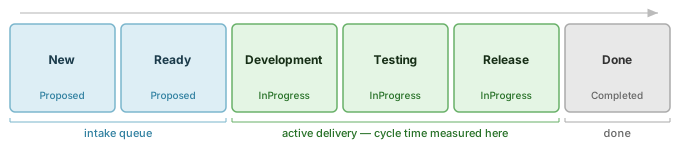
The Proposed columns at the left are your intake queue — work waiting to be started. Once an item crosses into the first InProgress column, the cycle time clock starts.
The Default Mapping Problem
When you add a new column to an existing board, ADO maps it to the first available state for each work item type — which is always a Proposed state, regardless of where you insert the column.
This means a column you insert between two InProgress columns will be mapped to Proposed by default:
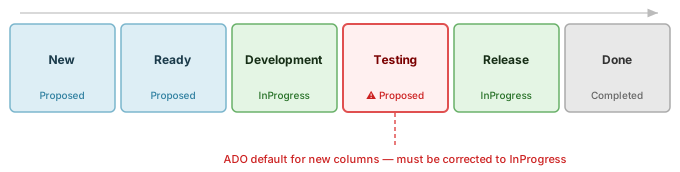
Work items crossing that column will have their state reset to Proposed, creating an incorrect interruption in their InProgress state history.
How to Fix It
In your board settings, find the misconfigured column and review the state mapping for each work item type. Change any Proposed states to your team’s InProgress state — typically Committed for Scrum, Active for Agile and CMMI, or Doing for Basic.
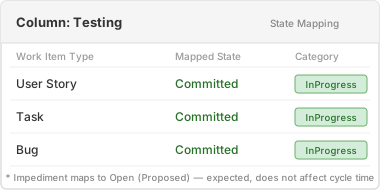
A few things to keep in mind:
- Every work item type needs to be mapped. The settings panel shows one row per type. If your board has User Stories, Bugs, and Impediments, each needs its own mapping on every column.
- Impediments are different. The Impediment type only has Open and Closed states. Map every column to Open except the final Done column, which maps to Closed. This won’t affect cycle time for your delivery items.
- The fix is not retroactive. Items that crossed the column while it was misconfigured already have that interruption in their state history. Only new activity from the point of correction onward will be clean.
What a Correctly Configured Board Delivers
With every working column mapped to an InProgress state, work item state history accurately reflects where items actually were. The board should have exactly one transition from Proposed to InProgress as work moves left to right, and it should stay InProgress until it reaches Done.