Blocker Buddy is an Azure DevOps (ADO) extension that turns “we have a lot of blockers” into measured, actionable data.
It’s faster and easier than opening the work item to add a tag manually, and it captures more — the category and duration of each blocker event.
Two components are provided: a context-menu action to toggle an item between blocked and unblocked, and a dashboard widget that shows blocker activity by category over time — current count, total time blocked, and per-category breakdown with sparklines.
Blocker Buddy answers the question your retros keep circling: not just what was blocked or what is blocked, but which category of blockers eats up the most time.
Confession: for years I’ve been telling teams to cluster their blockers into categories and attack the most common one. Few did so because it takes so much work and there’s no tooling to help. Worse still, the most common blockers are not always the team’s biggest problem — the category with the largest total blocked time is what really matters.
Installing Blocker Buddy
Install Blocker Buddy from the Microsoft Visual Studio Marketplace.
Installation requires organization-level permissions; if you don’t have them, ask your ADO administrator.
The extension uses vso.work_write scope — read AND write access to work items, fields, and comments — because it sets/removes the configurable blocker tag and posts structured discussion comments capturing the category and timing of each blocked period. All data stays inside your ADO organization; nothing is sent externally.
Once installed, the action is available immediately on every work item. To see the dashboard widget, add it once per dashboard:
- Edit the dashboard (Edit in upper right).
- Click in the Search widgets input.
- Type Blocker Buddy.
- Double click on Blocker Buddy.
- Configure the widget — see Configuring the widget below.
Setting up categories
Categories are your team’s curated list of why work gets stuck. They’re managed on the widget body, not the configuration pane — because the widget is where you see them in use, and edit-where-you-see beats edit-from-a-different-screen.
Work with your team(s) to curate categories specifically for your environment, up front. Renaming categories later splits the historical data, so it’s worth getting right the first time.
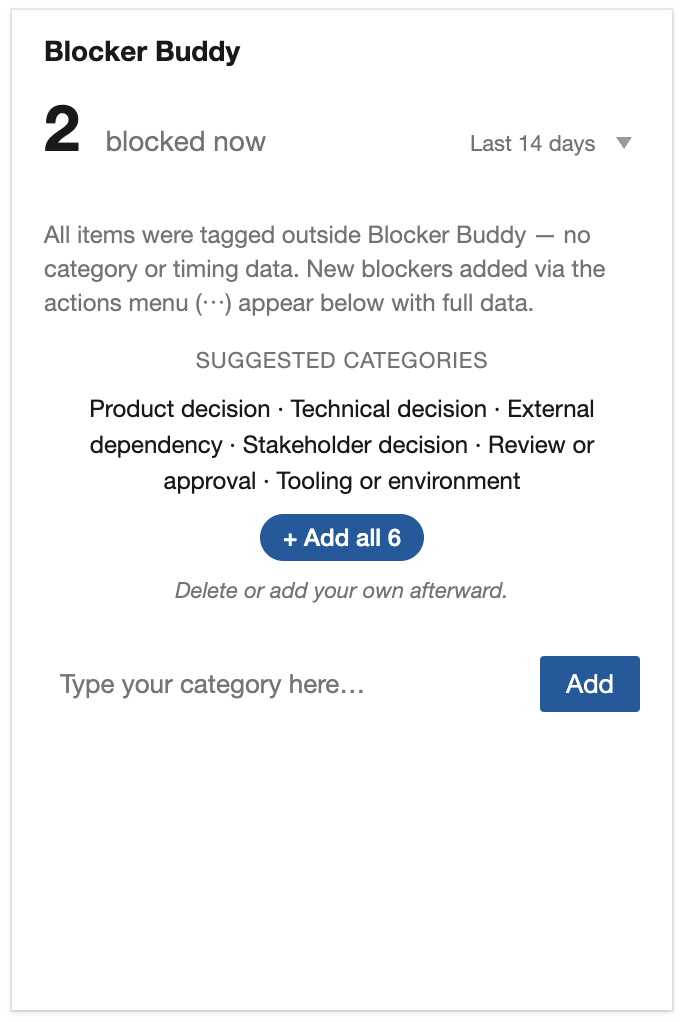
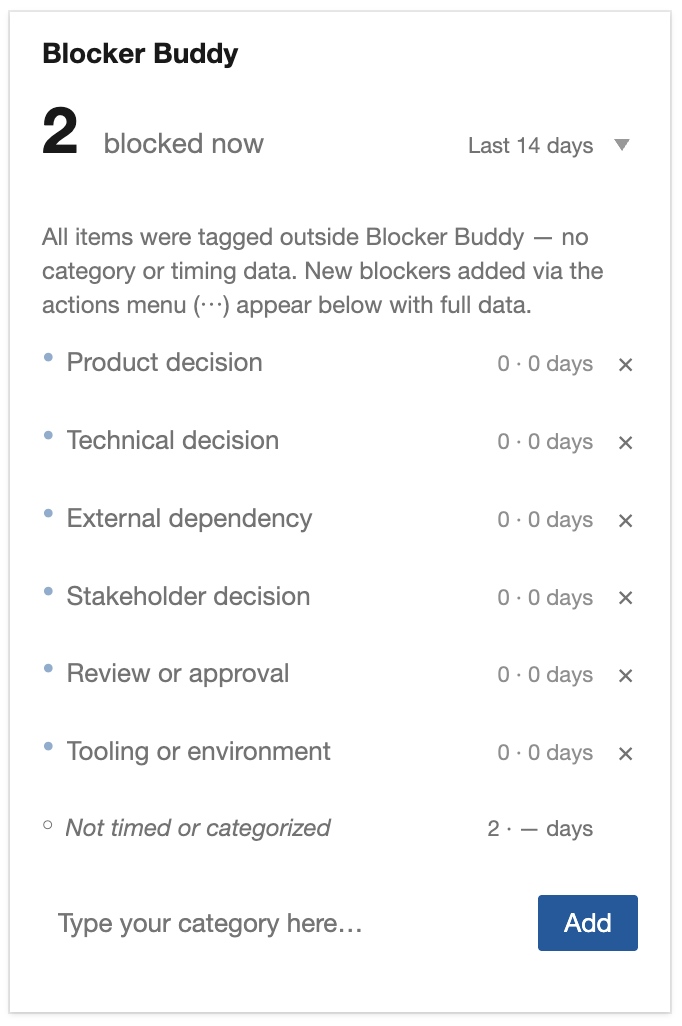
On first install, the widget offers a suggested set: Product decision, Technical decision, External dependency, Stakeholder decision, Review or approval, Tooling or environment. Click Add all 6 to populate the team’s category list with the suggested set, then use the controls below to customize your team’s categories.
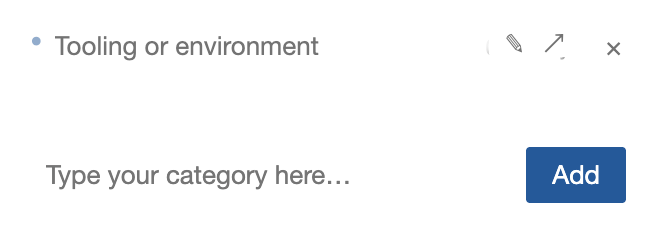
To add a custom category, type it into the input at the bottom of the widget and press Enter (or click Add). The new category becomes available in the block dialog immediately.
To rename a category (✎ icon on hover), click and type. Pressing Enter saves; Esc cancels. Historical block periods that used the old name continue to show under the old name until they age out of the timeframe — Blocker Buddy doesn’t rewrite history.
To remove a category (× icon, far right), click. The category disappears from the block dialog. Historical block periods that used it are still counted but appear with the row dimmed and struck-through, so you can see them ageing out.
Permissions. By default, only team or project admins can add, rename, or remove categories. Non-admins see the rows and the data but cannot edit. Set the Allow team members to edit categories toggle in the widget configuration pane to flip this open to all team members.
Daily use: blocking and unblocking
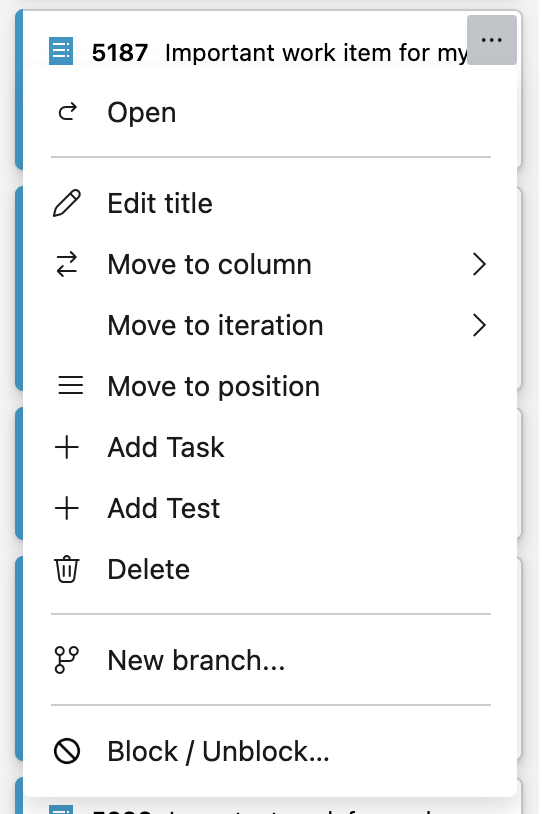
Blocker Buddy adds a Block / Unblock… entry to the actions menu (⋯) on board cards, backlog rows, and the work item form.
Click the actions menu (⋯), pick Block / Unblock. A dialog opens with one button for each of your team’s blocker categories.
Click any category. Two things happen, in this order, with progress shown in the dialog:
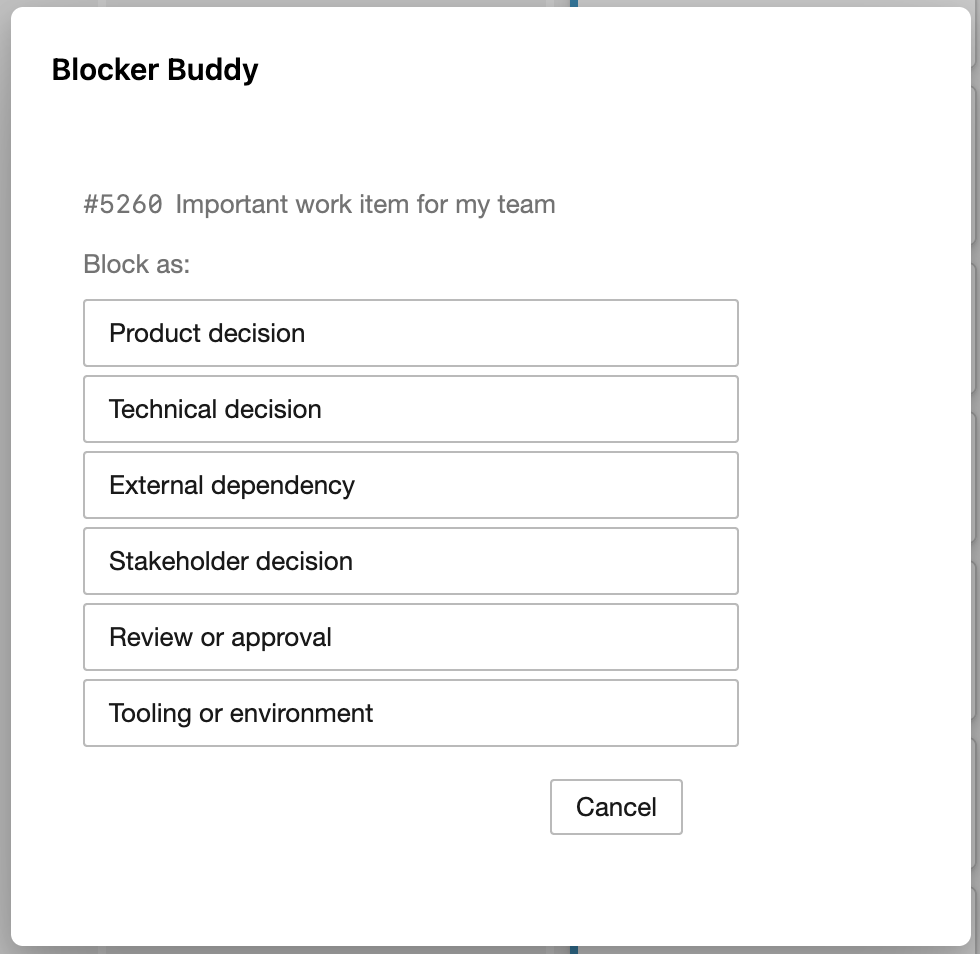
- A discussion comment is recorded —
BlockerBuddy: Blocked - External dependency— capturing the category and the timestamp. - The “Blocked” tag is added to the work item — so the card visually shows as blocked on the board.
The dialog closes after a brief confirmation. Total time: about a second.
Open the actions menu on the same card later, pick Block / Unblock again. The dialog shows what the item is blocked for, how long it’s been blocked so far, and Unblock/Cancel buttons.
This provides an easy way to check how long a work item has been blocked so far — just be sure to click Cancel after checking.
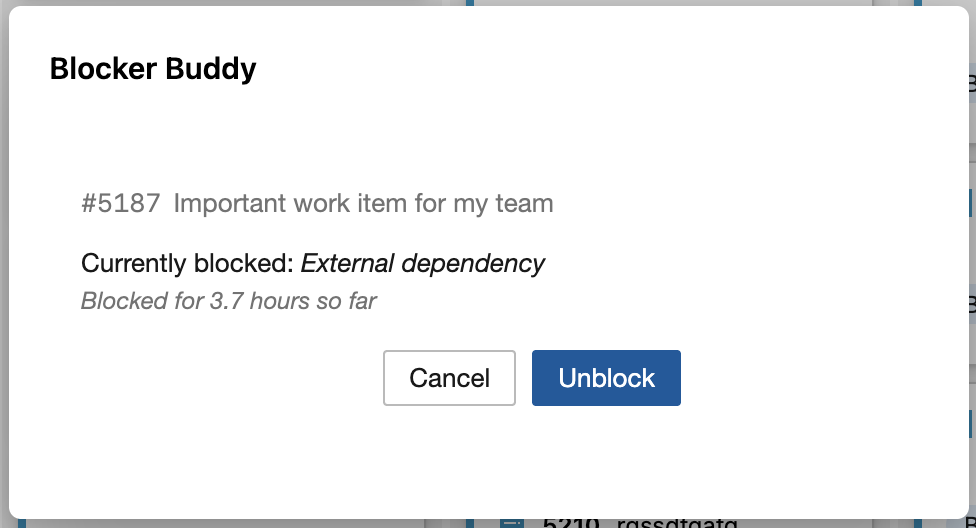
Click Unblock. Three things happen:
- A discussion comment is recorded —
BlockerBuddy: Unblocked (External dependency)— capturing the unblock timestamp. - The “Blocked” tag is removed.
- The dialog shows the duration — “Unblocked after 3.2 days” — so the cost of that block period is immediately visible.
Items that already had a “Blocked” tag added by hand (before Blocker Buddy was installed) get a different, simpler dialog with one Remove tag button — in this case only the tag is removed.
Reading the widget
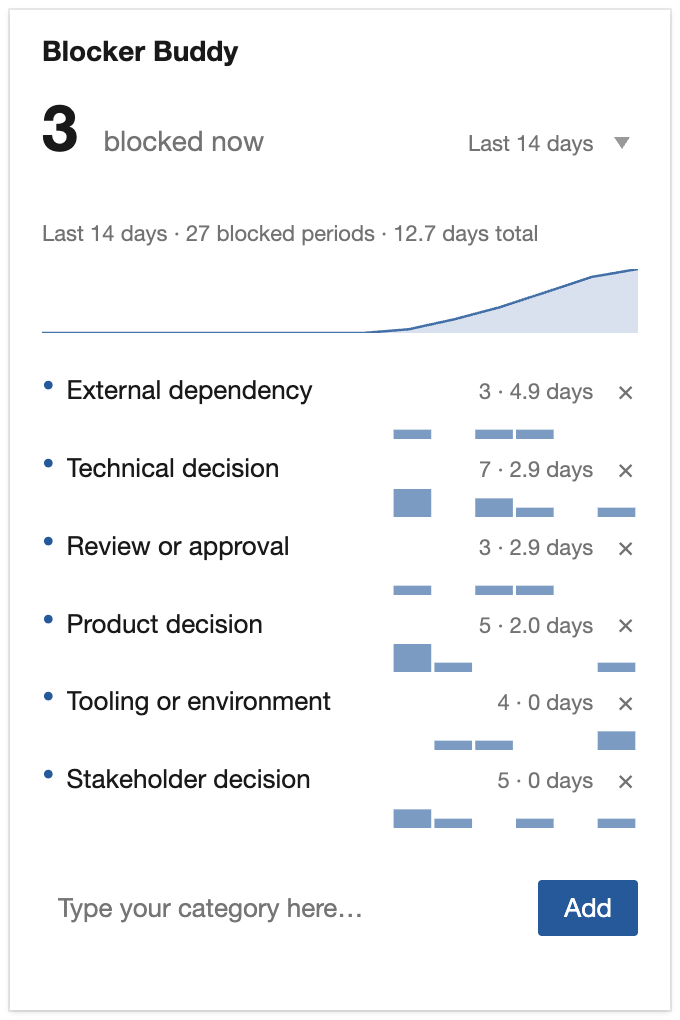
Hero count. X blocked now — items currently tagged blocked, counted once each regardless of how many block periods they’ve had.
Timeframe metrics line. “Last 14 days · 9 blocked periods · 22.7 days total” — three numbers summarizing the selected window: the range it covers, the count of blocked periods, and total duration across all of them.
Cumulative-duration chart. A small area chart of total blocker-time accumulated across the timeframe. Slopes show busy periods; plateaus show calm. Final value on the right matches the timeframe metrics line’s “X days total.”
Per-category breakdown rows. One row per category, sorted by total duration — the categories that cost the most time appear first. Each row shows: category name, count of blocked periods · total duration in days, and a sparkline of daily new-blocker events for that category.
Sparkline bars share a y-axis across all categories so heights are directly comparable row-to-row — a busy day in one category visibly outranks a quiet day in another. Reading the count-based sparkline alongside the duration-based metrics line reveals categories of different character: slow-grind blockers (few but long) versus paper-cut blockers (many but short).
“Not timed or categorized” row. Items currently tagged blocked but without a Blocker Buddy discussion comment. These are usually items tagged manually before Blocker Buddy was installed; they appear in the list with an outline bullet (○) so you can see the count without having timing data attributed to a specific category.
Actions on each row. Hover any category row and three icons fade in:
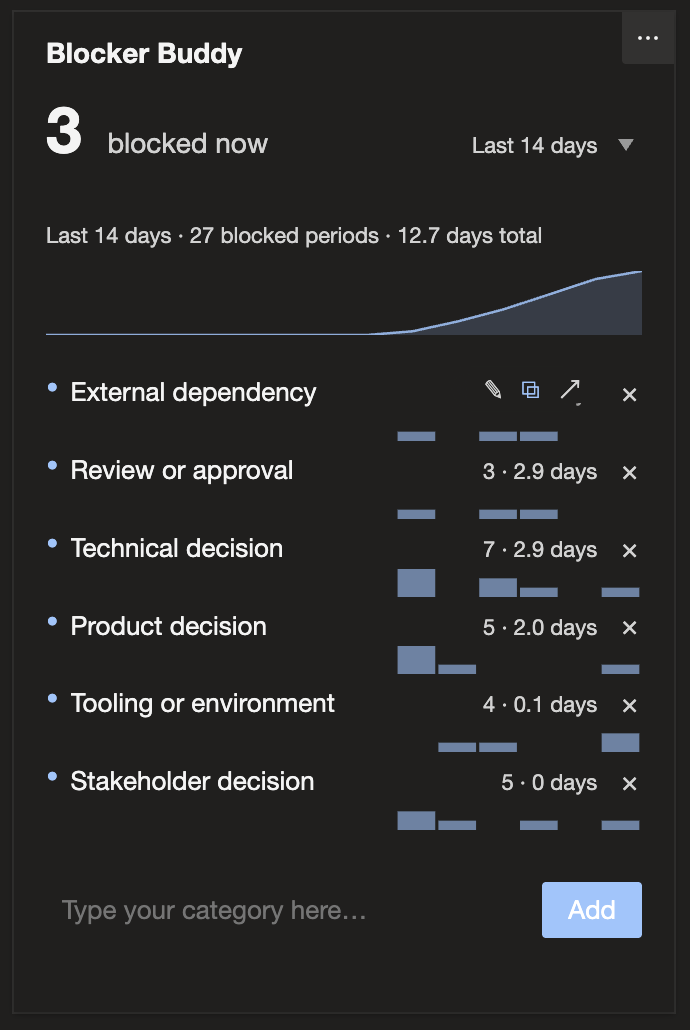
- ✎ Rename the category (admin or with team permission).
- ⧉ Copy the category’s blocked periods to the clipboard as TSV.
- ↗ Open an Azure DevOps query showing the work items that had blocked periods in this category, ready for ad-hoc analysis.
The same ⧉ and ↗ also appear on hover over the timeframe metrics line, just below the ‘blocked now’ count.
× Remove behaves differently — always visible, not hover-only, so removing a stale category is a one-click target. Click it to remove the category from the curated list. Historical data for that category stays visible until it ages out of the timeframe.
Light and dark mode. The widget tracks your ADO theme automatically — colors, backgrounds, and contrast adapt without configuration.
Configuring the widget
When you open the widget’s configuration pane, you’ll see:
- Team — the team whose work the widget will show. Defaults to the dashboard’s team. If the dashboard isn’t team-scoped (project dashboard), you must pick a team here.
- Blocker tag — the tag Blocker Buddy adds and removes on work items. Defaults to Blocked. Override if your team already uses a different tag for this purpose; Blocker Buddy will use whatever you specify.
- Allow team members to edit categories — when on, any team member can add / rename / remove categories on the widget body. When off (default), only admins can.
The timeframe selector lives on the widget body itself (top-right of the title row), not in the configuration pane — pick Last 14 / 30 / 60 / 90 / 120 days or All time. Default is 14 days, which aligns with the most common 2-week sprint cadence.
Filtering and exporting
Per-category copy as TSV. Hover any category row and click the ⧉ icon. The category’s in-timeframe blocked periods go straight to your clipboard, ready to paste into Excel, Google Sheets, or any spreadsheet tool. Each row carries 7 columns:
ID, Title, Category, BlockDate, UnblockDate, DurationDays, URL.
- BlockDate and UnblockDate are ISO calendar dates (
YYYY-MM-DD). Open periods show (open) in the UnblockDate column. - DurationDays is the cycle’s length in days, rounded to two decimals — for
=AVERAGE()and=SUM()formulas in your spreadsheet. - URLs auto-linkify in Excel after you press Enter on the cell, turning the export into a clickable navigation table back to ADO.
Per-category open WIQL query. Hover a category row and click the ↗ icon. A new tab opens with an ADO query editor pre-populated to find the work items that had blocked periods in this category.
All-in-timeframe copy and query. The same ⧉ and ↗ also appear on hover over the timeframe metrics line — giving you every item and its blocked period(s) in the timeframe, across every category.
If a category had more than 200 blocked periods in the timeframe, the open-query shows the most recent 200 (URL-length limit) and surfaces a notice; copy-as-TSV is unbounded.
Common questions
What does Blocker Buddy write to my work items?
Two things, both via the standard ADO discussion and tag mechanisms — no custom fields, no hidden state.
- Discussion comments in a structured format:
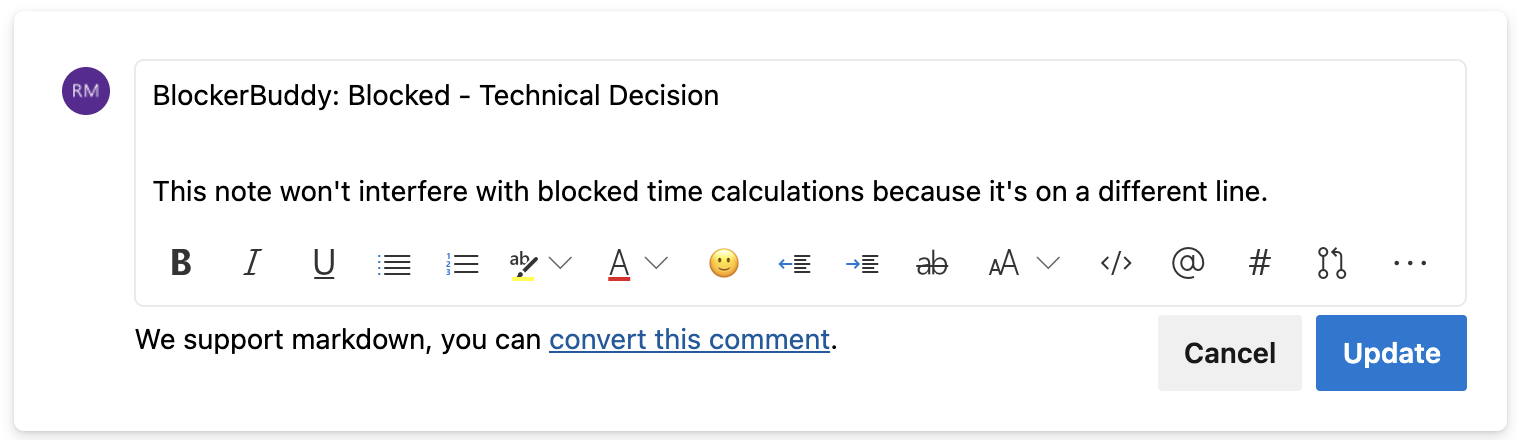
BlockerBuddy: Blocked - Product decisionwhen blocked,BlockerBuddy: Unblocked (Product decision)when unblocked. The text is plain and human-readable; read the audit trail by scrolling the work item’s Discussion tab. - The “Blocked” tag (or whatever name you’ve configured) gets added on block and removed on unblock. The tag is the visual signal on the board; the comment is the data.
Adding your own notes to a Blocker Buddy comment is safe as long as you put your text on a new line below the Blocker Buddy line. Blocker Buddy preserves the structured marker on the first line and treats your additions as separate content. Editing or deleting the Blocker Buddy line itself will remove blocker history data for that blocked period on the work item.
The widget reads both discussion comments back to compute blocked time.
Does Blocker Buddy work with Azure DevOps Server (on-premises)?
Officially supported for Azure DevOps Services (cloud). The marketplace listing targets the cloud edition; the plugin isn't currently distributed through the on-premises marketplace. There are no known technical limitations that would prevent it from working on Azure DevOps Server, but I haven't validated it against the on-premises edition. If you need on-prem support, contact me and we'll work through it together — likely starting with a version check (the modern Azure DevOps Extension SDK that this plugin uses requires Azure DevOps Server 2019 or later).
Does Blocker Buddy support my custom work item types?
Yes. Blocker Buddy works on any work item type your team uses (PBI, Bug, Task, Feature, Epic, Production Issue — anything in your process template). The action appears on every work item’s actions menu; the widget aggregates across whatever items the team has.
Same item shows up in multiple categories — is that a bug?
No, that’s the timeline view working correctly. If an item was blocked under “Product decision,” unblocked, then blocked again under “External dependency,” it has two blocked periods — one in each category. Both contribute to that category’s row.
Can a single Blocker Buddy widget show blockers across multiple teams?
Yes, two ways depending on how your ADO area paths are organized.
Option 1) Native ADO rollup, automatically (recommended). Blocker Buddy honors each team’s configured area-path scope, including ADO’s “include sub-areas” subtree setting.
If a “program” or umbrella team in ADO is configured to include subtree area paths (the Include sub areas checkbox under Project Settings → Teams → [Team Name] → Iterations and area paths → Areas), Blocker Buddy automatically rolls up blockers from every sub-area beneath.
Add the Blocker Buddy widget to that umbrella team’s dashboard and you’ll see currently-blocked count, total time blocked, and per-category breakdown summed across every team underneath — in a single view, no special widget configuration needed. This is ADO’s native team-rollup mechanism; if your org already uses it for sprint reviews and program reporting, Blocker Buddy slots in alongside.
Option 2) Shared vocabulary + TSV merge (for peer-level teams). When teams have peer area paths (no parent rollup configured), agree on a shared category list — each team’s widget then displays their own data with consistent labels. Use ⧉ Copy as TSV per category per team, paste into Excel or Google Sheets, and cross-team blocker patterns surface naturally — which categories cost the most time across the program? For teams working in cadence, the shared vocabulary IS the rollup mechanism; the TSV exports become the data layer.
What happens when I delete a category that has historical data?
The category disappears from the block dialog (no new periods can be created in it). Existing blocked periods that used the category continue to appear in the breakdown, with the row visually dimmed and struck-through. They age out automatically as their data falls out of the timeframe. If you want them gone faster, switch to a shorter timeframe — they’ll drop out as soon as their dates are outside the timeframe.
An item has the “Blocked” tag but it wasn’t added by Blocker Buddy. What happens?
The widget surfaces it under “Not timed or categorized” — counted in the currently-blocked total but without category or duration data. The actions menu’s Blocker Buddy entry on that item shows a single “Remove tag” button — no marker comment is written when you click it, since there’s nothing to pair with.
Best practice for a forgotten manual tag: Remove tag through Blocker Buddy, then immediately open Block / Unblock again and pick a category to start clean tracking. You lose the elapsed time between the manual tag and the re-block, but everything from that point forward is properly tracked.
I have unsaved changes on a work item form — will Blocker Buddy lose them?
No. Blocker Buddy checks if there are changes on the work item form and won’t do anything until your pending edits are saved. This avoids conflicting changes and lost edits.
My project has thousands of items with blocker history — am I seeing all of it?
Azure DevOps caps WIQL queries at 20,000 results. If your project’s blocker history reaches that limit, the widget displays a notice and the totals reflect the most-recent 20,000 items only. Narrow the timeframe to bring the count under the cap.
What happens if a network error interrupts a block or unblock partway through?
The dialog tells you exactly which step succeeded and which didn’t. If the comment was recorded but the tag wasn’t added (or vice versa), the dialog gives you instructions to manually clean up the orphaned state — it won’t auto-retry into a confused state.
How do I refresh the widget?
The widget refreshes automatically when the dashboard loads, when a configuration change is saved, or when you refresh the dashboard.
Getting direct help
Email me directly. Use the contact form and describe:
- The problem you experienced.
- Steps to reproduce it.
- Expected vs. actual behavior.
- Any other relevant context.
Ask publicly. The extension’s Q&A tab on Marketplace is good for questions you’re happy having others find and benefit from. I answer those too.
Other free AgileViz plugins
While you're here, browse the AgileViz plugin portfolio:
- Throughput — Items completed per sprint, month, or quarter — with the trend over time and breakdown by work item type.
- Visual Rollup — See child-state distribution of work items grouped by parent, from any shared query.
Each plugin does one thing well and is free on the Marketplace.
AgileViz Cycle Time by Board Column
While you’re here, check out AgileViz Cycle Time by Board Column.
- See exactly where your process is slow or unpredictable.
- Real time view of delays — before they get out of control.
- AI analysis gives you insights and asks questions to help your team improve.
Try it free, no credit card needed, learn more.